 [h1=controls]1. Controls — or, rather, giving you control[/h1]
[b]We hear you: The control options in the War Games demo didn’t meet your expectations.[/b] Let’s not mince words here. Many of you found that the Modern controls were simply unintuitive and that the adjustments we made to Classic controls departed too much from previous Homeworld games.
[b]As we address these issues, three key principles guide our solutions:[/b]
[h1=controls]1. Controls — or, rather, giving you control[/h1]
[b]We hear you: The control options in the War Games demo didn’t meet your expectations.[/b] Let’s not mince words here. Many of you found that the Modern controls were simply unintuitive and that the adjustments we made to Classic controls departed too much from previous Homeworld games.
[b]As we address these issues, three key principles guide our solutions:[/b]
- Build an intuitive control scheme for all players that leverages Homeworld 3’s unique features and modern camera control best practices.
- Understand and acknowledge what veteran Homeworld players find familiar about the original control schemes.
- Let everyone have freedom to customize controls to best fit their unique playstyle as much as possible.
- [b]
- Nearly every single keyboard input is now rebindable.[/b] [list]
- Rebind abilities, keyboard-related camera controls, command modifiers, and more!
- If you manually rebind an input and then swap hotkey presets, your manually rebinded inputs won’t be overridden.
- We’ve also given you more granular control over the camera settings, so you can fine-tune it as needed.
- [b]The Modern control scheme has been designed for Homeworld 3 by incorporating two decades worth of innovations and learnings from other strategy games and is being made even better thanks to your feedback.[/b] This setup is meant to cater to a wide audience of players and doesn’t assume prior experience with Homeworld. [list]
- The first-person camera is controlled by [b]WASD + QE[/b].
- Unit movement prioritizes clicking on terrain to provide waypoints.
- We’ve also moved away from the War Games demo’s grid-style hotkey convention (where hotkeys were bound to QWERT + ASDFG keys). [b]Hotkeys are now directly related to the action they perform[/b] but with a bias towards keys that are easily reached with your left-hand resting on WASD. [list]
- For example, “V” is now your default keybind for Mo[b]V[/b]e because [i]Homeworld 2 Remastered[/i]’s use of “M” is a bit of a stretch on QWERTY-style keyboards. “H” is for [b]H[/b]arvest, “A” is for [b]A[/b]attack, and so forth.
- To avoid this, you can choose to enable the option where the Modern preset camera can only be moved when holding the right mouse button. Or you can just rebind Dock to another hotkey (like “Ctrl-D”).
- We’ve fixed a bug in the War Games demo related to the above, where using right-click to engage the camera resulted in all hotkeys being disabled. Now, using right-click to engage the camera only disables the camera movement keys.
- The orbit-style camera is controlled by the mouse, arrow keys, or by focusing targets.
- Unit movement prioritizes the Movement Disc, exactly as you remembered it. [list]
- We’ve expanded Movement Disc functionality to add some features that were available in [i]Homeworld 2 Remastered[/i], like using “Shift” to adjust height.
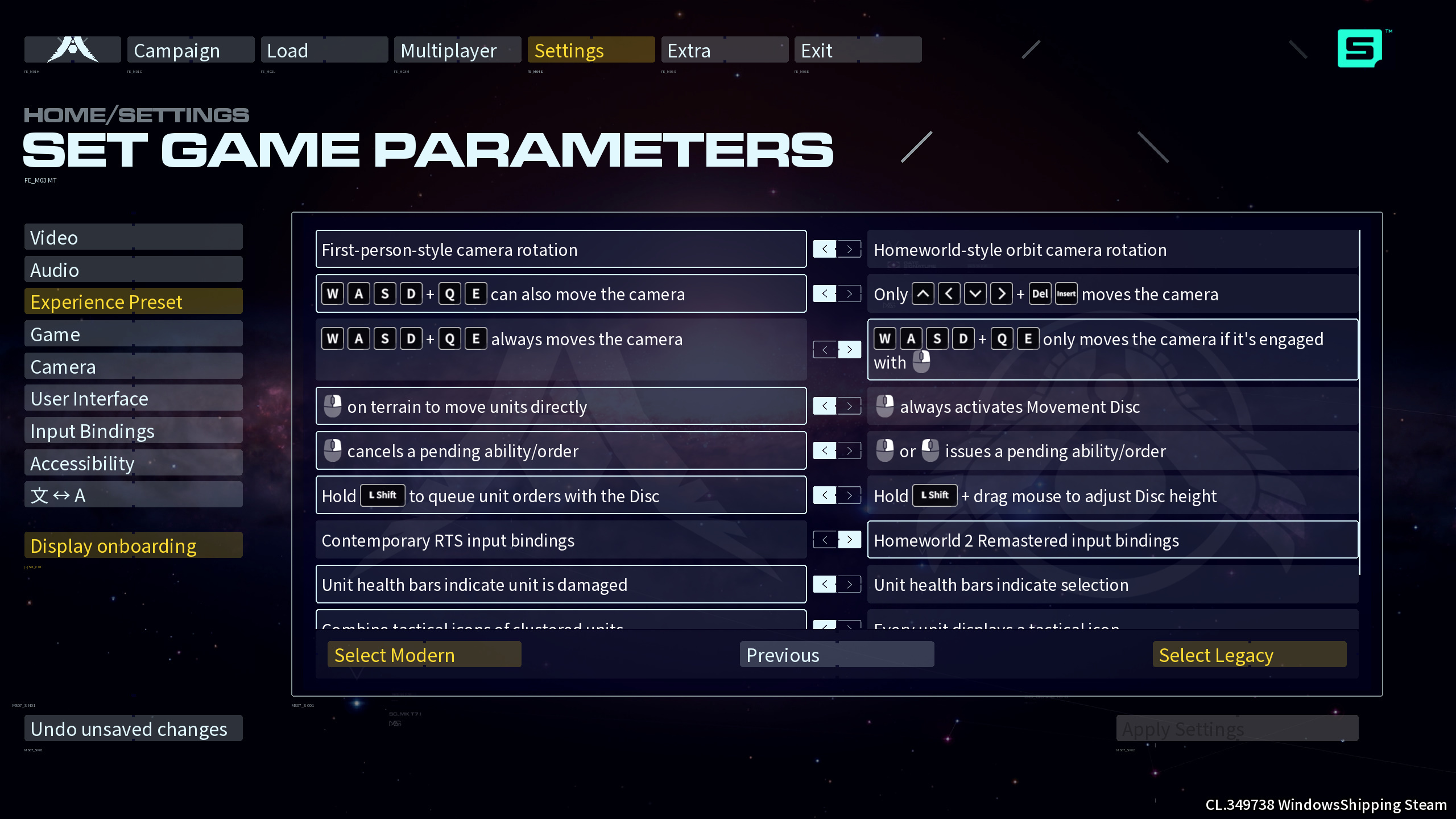 [*] [b]The “Customize” option is for players interested in taking the best of both of these schemes to create something unique.[/b] Here you can mix and match both the Modern and Legacy presets to find the perfect setup. Unsurprisingly, this has become the favorite option for most of us on the development team, as it lets you retain aspects about [i]Homeworld 2 Remastered[/i] that you loved while still benefiting from some more user-friendly options.
- Every option outlined above (and many more) are presented as a set of toggles that you swap between Modern and Legacy. Want a WASD-controlled, orbiting camera with [i]Homeworld 2 Remastered[/i] hotkeys and icon amalgamation in the Tactical Overlay? Go nuts!
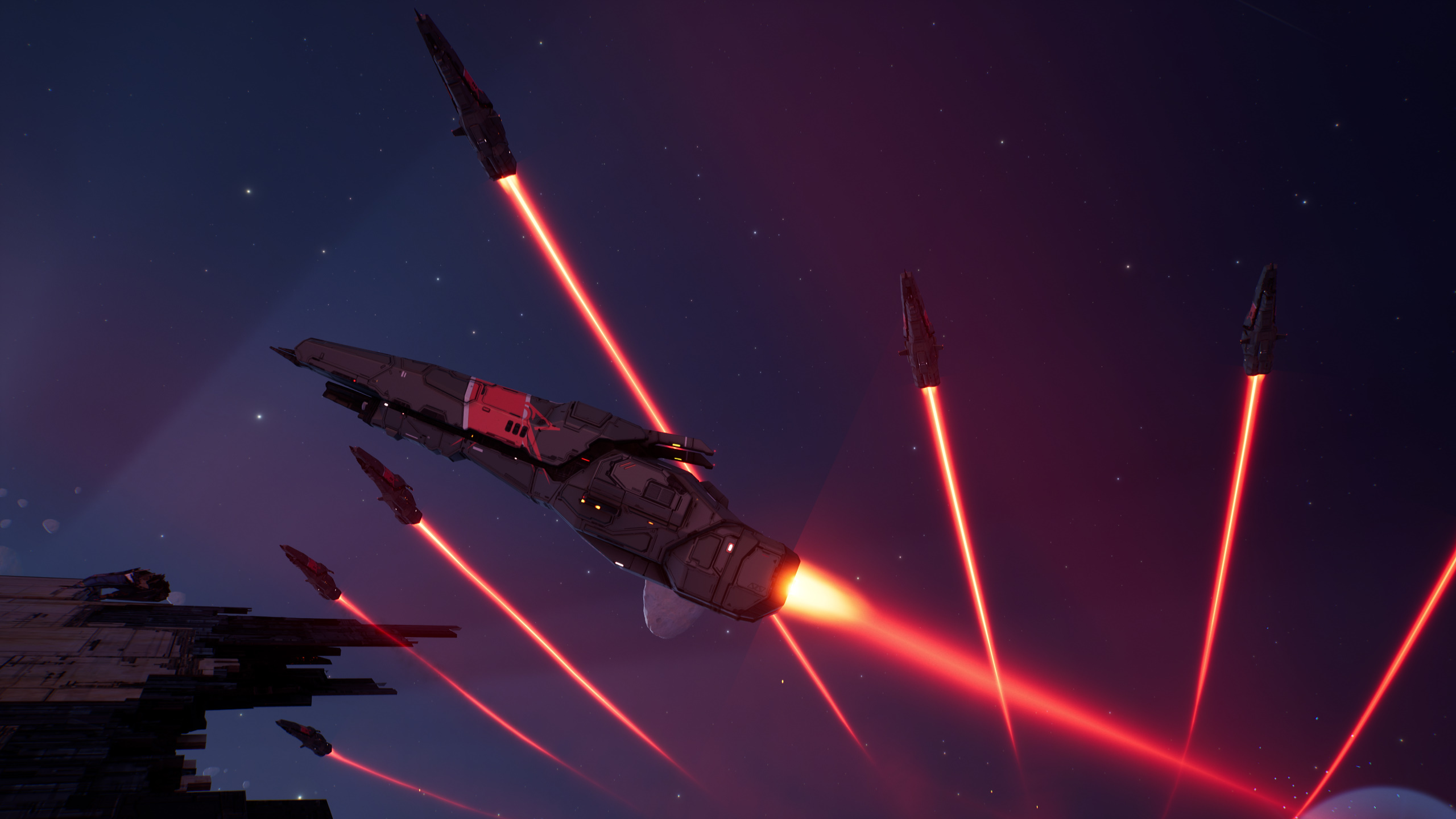
- [b]We’ve increased the hitpoints of every ship by 30 percent.[/b] Now everything takes longer to explode without sacrificing the potential for devastating ambushes or other massive swings in momentum. This is just one crucial ingredient in a much larger mix of adjustments to ship behavior that makes combat more satisfying, intuitive, and tactical.
- [b]We’ve made improvements to formations that make using them more beneficial and less tedious.[/b] [list]
- When activating a formation, ships will organize themselves more organically instead of dropping everything they were doing to go form up.
- When activating a formation on ships that are traveling to the same destination, the formation will anchor itself around whichever ship is the furthest ahead, so slower ships will continue moving forward and leading ships won’t suddenly pull a 180 to go regroup.
- There was also a painful bug that often caused ships to stop dead in their tracks when given a formation assignment. That’s now fixed.
- The sphere formation, in particular, is now a much more potent ball of death that is useful when you want to concentrate firepower and movement around a single ship.
- To address that, [b]we’ve made ability durations and their cooldowns longer[/b]. The result is that when to activate an ability is a choice that carries more consequence than before. You’re no longer spamming abilities the moment they’re available, but instead waiting and choosing the opportune moment to use them for maximum effectiveness — knowing that failing to do so will result in that ability being offline for much longer.
- [i]Homeworld 3[/i] is still in development, and when the demo was released, we didn’t have a proper implementation of Attack Move orders.
- Many larger ships in [i]Homeworld 3[/i] feature point-defense systems like omni-directional turrets that automatically engage nearby threats. There was a bug in the demo, however, that was often preventing those turrets from opening fire as intended.
- Attack Move now works as intended, and can be used with either the Modern or Legacy control presets. To initiate an Attack Move order you can: [list]
- Give an Attack order and click on terrain.
- Give a Move order and, when the Movement Disc appears, hold “Ctrl” to convert the Move order to an Attack Move order (the Movement Disc will turn red to indicate this).
- Units currently engaging hostile targets can be given a Move order and they will move to a chosen point but keep attacking their existing target as long as they are within range, allowing you to kite enemies.
 [h1=hud]4. HUD, NLIPS, and other fun acronyms[/h1]
Let’s take a minute to talk about some other important adjustments that we think make [i]Homeworld 3[/i] a more immersive experience. A lot of you felt like the HUD ate up too much screen real estate, especially compared to older Homeworld games. We’ve always endeavored to make Homeworld 3 the most beautiful strategy game you’ve ever seen. We’d hate for players to feel like they can’t get lost in the splendor of space because other elements are getting in the way.
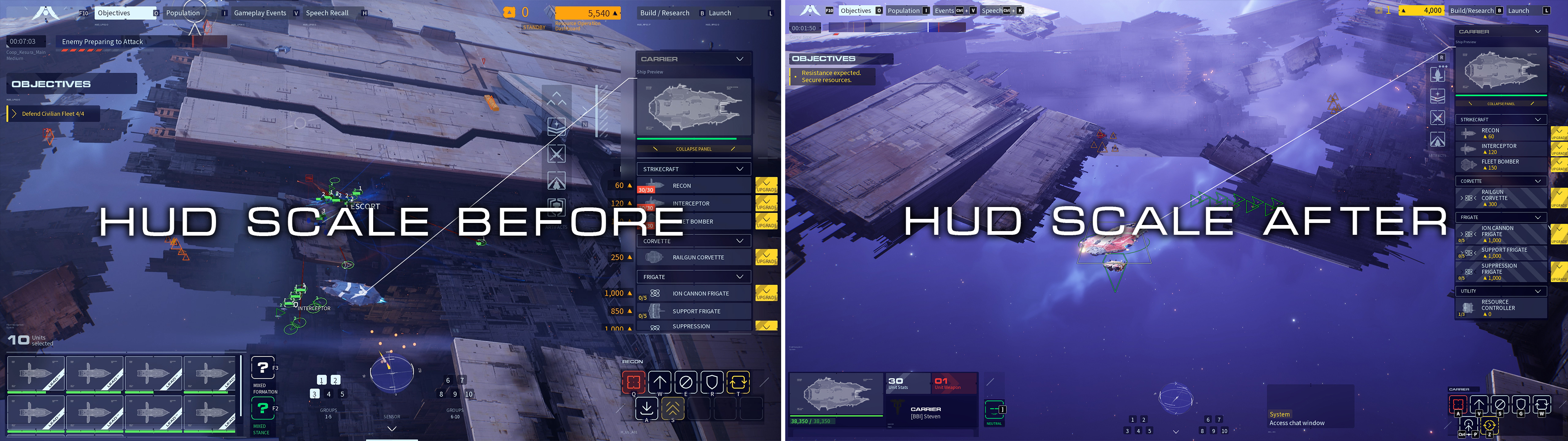
The only solution was obvious: [b]We’ve added a slider to adjust the scale of the HUD in the settings menu.[/b] We’ve also dialed it back by default and refactored many elements of the HUD so it will appear less obstructive than it did during the War Games demo.
Speaking of scaling things back, you’d be forgiven if you saw “NLIPS” written above and thought a cat had jumped on my keyboard. NLIPS (Non-Linear Inverse Perspective Scrolling) is a feature from older Homeworld games that scales ship models up relative to the camera’s distance to them. Essentially, it was a way to ensure you could still see and easily select smaller ships like Fighters even when zoomed very far out.
[h1=hud]4. HUD, NLIPS, and other fun acronyms[/h1]
Let’s take a minute to talk about some other important adjustments that we think make [i]Homeworld 3[/i] a more immersive experience. A lot of you felt like the HUD ate up too much screen real estate, especially compared to older Homeworld games. We’ve always endeavored to make Homeworld 3 the most beautiful strategy game you’ve ever seen. We’d hate for players to feel like they can’t get lost in the splendor of space because other elements are getting in the way.
The only solution was obvious: [b]We’ve added a slider to adjust the scale of the HUD in the settings menu.[/b] We’ve also dialed it back by default and refactored many elements of the HUD so it will appear less obstructive than it did during the War Games demo.
Speaking of scaling things back, you’d be forgiven if you saw “NLIPS” written above and thought a cat had jumped on my keyboard. NLIPS (Non-Linear Inverse Perspective Scrolling) is a feature from older Homeworld games that scales ship models up relative to the camera’s distance to them. Essentially, it was a way to ensure you could still see and easily select smaller ships like Fighters even when zoomed very far out.
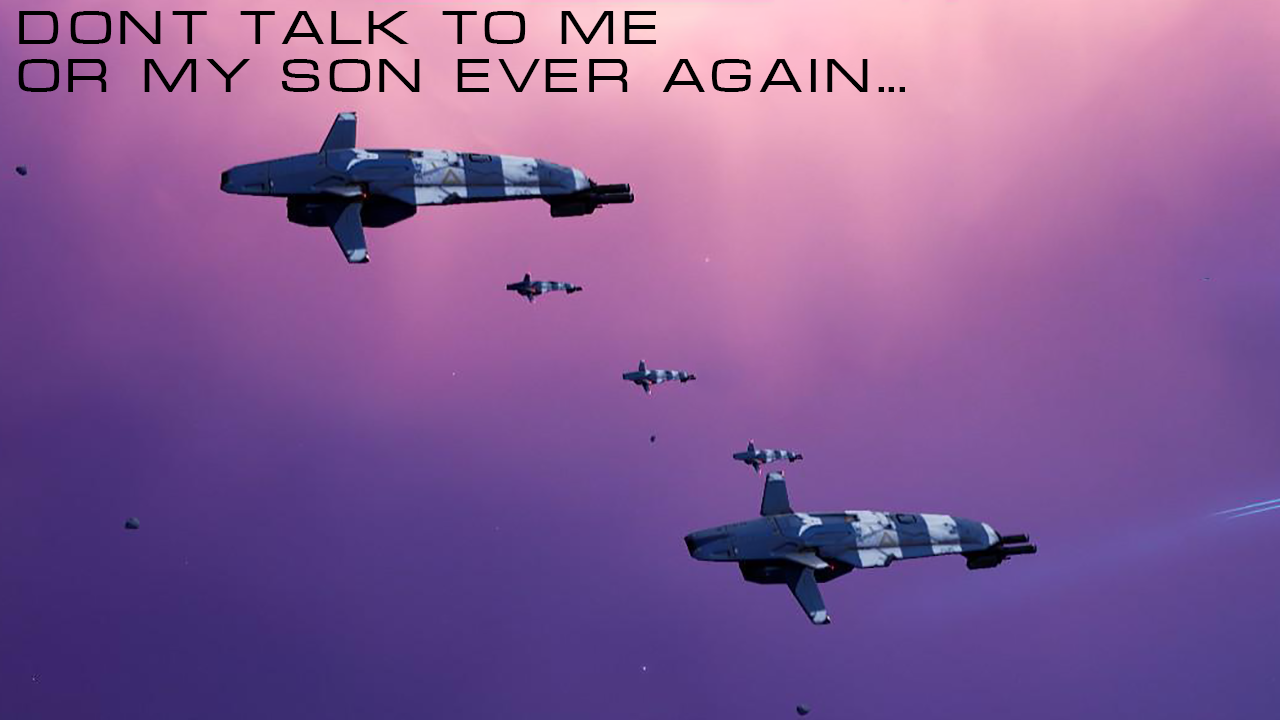 In the War Games demo, NLIPS was bugged and that resulted in ship sizes being all out of whack. That obviously made it harder to ground yourself in the drama of combat. It also resulted in some pretty funny “Don’t talk to me or my son ever again” moments where one Fighter would appear much larger than another one right next to it. [b]NLIPS issues have been addressed and it now works properly.[/b] You can also turn off NLIPS entirely, if you prefer a totally realistic sense of scale for ships.
There’s some other relevant adjustments I’d like to mention:
In the War Games demo, NLIPS was bugged and that resulted in ship sizes being all out of whack. That obviously made it harder to ground yourself in the drama of combat. It also resulted in some pretty funny “Don’t talk to me or my son ever again” moments where one Fighter would appear much larger than another one right next to it. [b]NLIPS issues have been addressed and it now works properly.[/b] You can also turn off NLIPS entirely, if you prefer a totally realistic sense of scale for ships.
There’s some other relevant adjustments I’d like to mention:
- The bandbox (or selection box) is now much more accurate than before, so you’ll find it easier to select clusters of units.
- The Spacebar no longer builds a ship when the Build Menu is open, so you won’t accidentally start production on something when you really meant to open the Sensors Manager.
- We’ve also made the Sensors Manager more usable by increasing zoom sensitivity. [list]
- And don’t forget there’s now more granular options for icon amalgamation so you can select a preset that is most useful to you.
 [h1=wargames]5. Variety is the Spice of War Games[/h1]
We’re thrilled that so many of you are just as excited by War Games as we are. I hope you’ll be even more jazzed about some of these changes we’ve implemented thanks to your feedback.
[h1=wargames]5. Variety is the Spice of War Games[/h1]
We’re thrilled that so many of you are just as excited by War Games as we are. I hope you’ll be even more jazzed about some of these changes we’ve implemented thanks to your feedback.
- [b]We’ve doubled the amount of objectives that can happen during a run.[/b] [list]
- To clarify this just a smidge, the four objectives you saw in the War Games demo are now only available during the first mission.
- The second mission has an entirely new set of four objectives. To reflect the escalating difficulty of a run, these objectives require use of advanced mechanics, like salvaging wrecks, protecting flagships, and capturing ships.
- Enabling difficulty modifiers that spawn an extra objective during each mission now vastly increases the number of objective permutations you can experience between runs.
- We saw how frustrating it was to have a run end with a whimper because your Resource Controllers were destroyed and you lacked the funds to build new ones.
- Now you can always reboot your production operations, but their increased build time will put you in a very vulnerable position until they’re back online.