 Hunters,
We’ve noticed that a lot of you are interested in how the audio systems work in Hunt: Showdown 1896. With the help of our audio engineers, we have compiled the guide below to answer some of your most frequently asked questions regarding how we give you the best audio experience possible.
Some of the changes that are coming with Update 2.4 are improvements to silent/missing footsteps, a revised vertical footstep audio design, gunshot distance readability, and more! We look forward to sharing more about the new update and what it means for your audio experience soon.
Hunters,
We’ve noticed that a lot of you are interested in how the audio systems work in Hunt: Showdown 1896. With the help of our audio engineers, we have compiled the guide below to answer some of your most frequently asked questions regarding how we give you the best audio experience possible.
Some of the changes that are coming with Update 2.4 are improvements to silent/missing footsteps, a revised vertical footstep audio design, gunshot distance readability, and more! We look forward to sharing more about the new update and what it means for your audio experience soon.
FAQ: What is CrySpatial?
CrySpatial is our 3D audio solution designed specifically for Hunt. Implemented back in 2019, it’s our recommended spatial audio solution when playing the game. CrySpatial uses HRTF (Head-Related-Transfer-Function) for its 3D audio positioning and is directly integrated into the game, enabling players to hear if certain sounds are coming from behind, in front of, above, or below them. (Just a friendly reminder that CrySpatial or any other spatial audio solution does not handle the way sounds are attenuated over a distance or while being occluded by objects.) While CrySpatial has been a part of Hunt since its release, we added an option for players to disable it with the launch of Hunt: Showdown 1896. [b]To experience CrySpatial (recommended):[/b]- Use stereo headphones
- Activate CrySpatial in the Audio Settings (this can be done during a Mission or in the Main Menu) and hit the Apply button.
- Ensure you deactivate any additional audio enhancements
- Ensure any Virtual Surround/Room Correction features are deactivated on your system and headphone-specific drivers
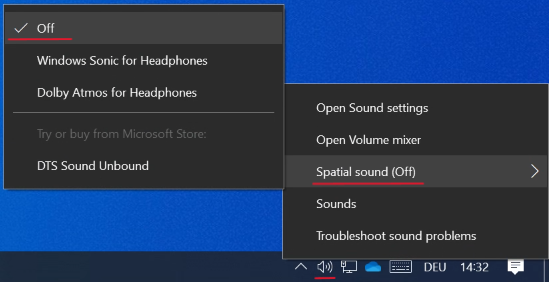
- Right-click the speaker icon in your taskbar/system tray
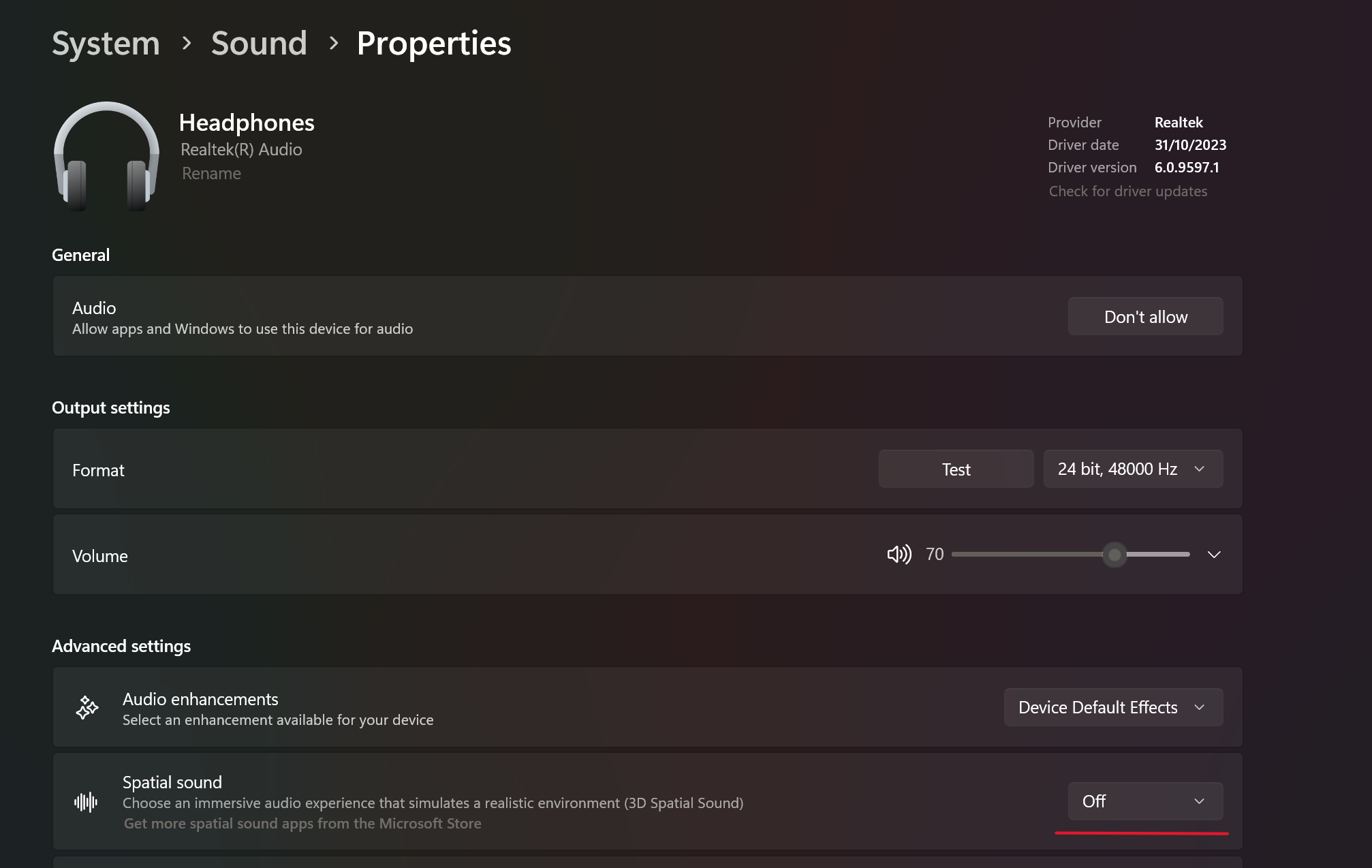
- Select “Spatial sound” and set it to “Off”
 [b]for Windows 11:[/b]
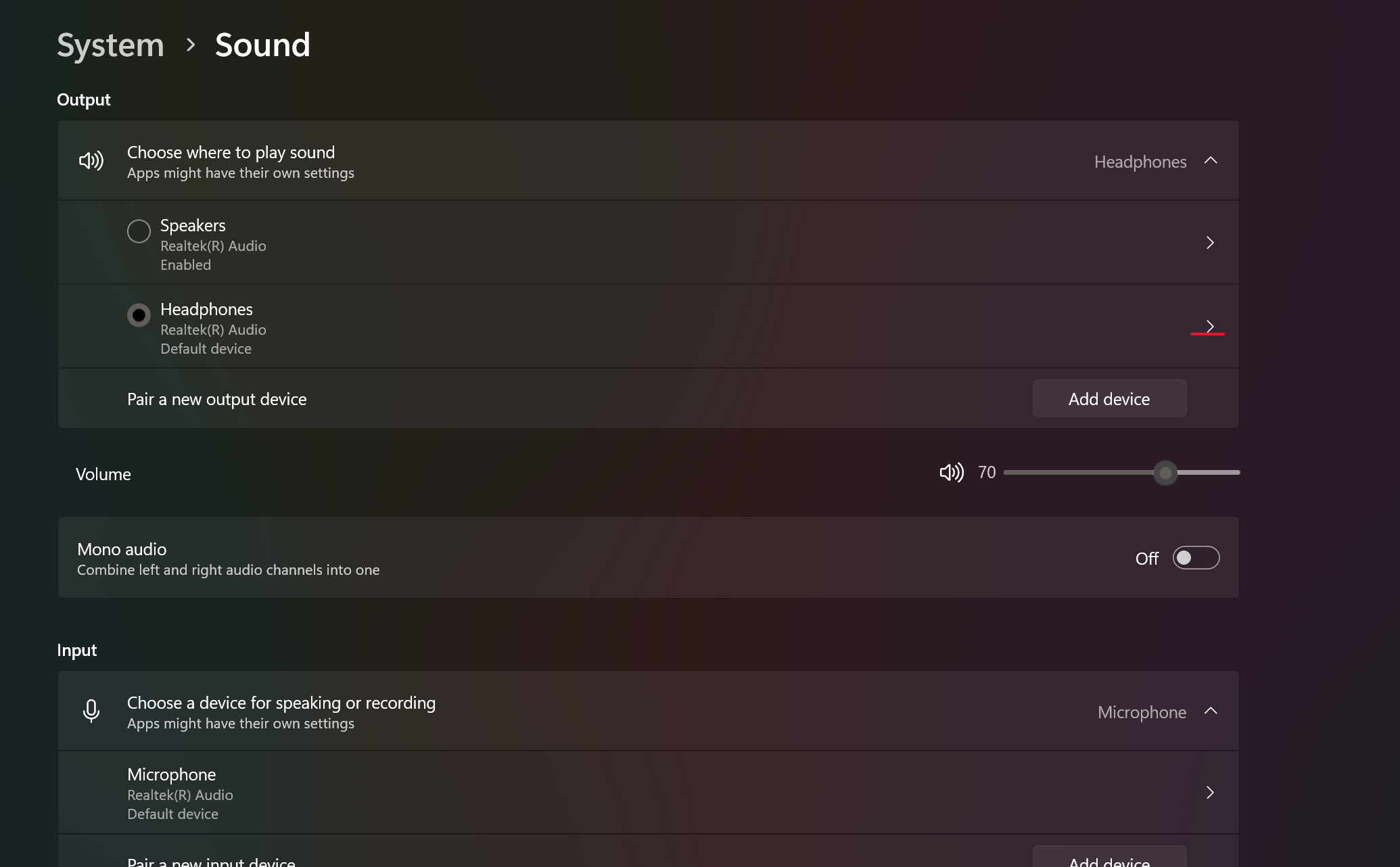
- Open System -> Sound Settings
- Open your Output Device’s properties by clicking on the arrow on the side
 [b]for Xbox Series X|S:[/b]
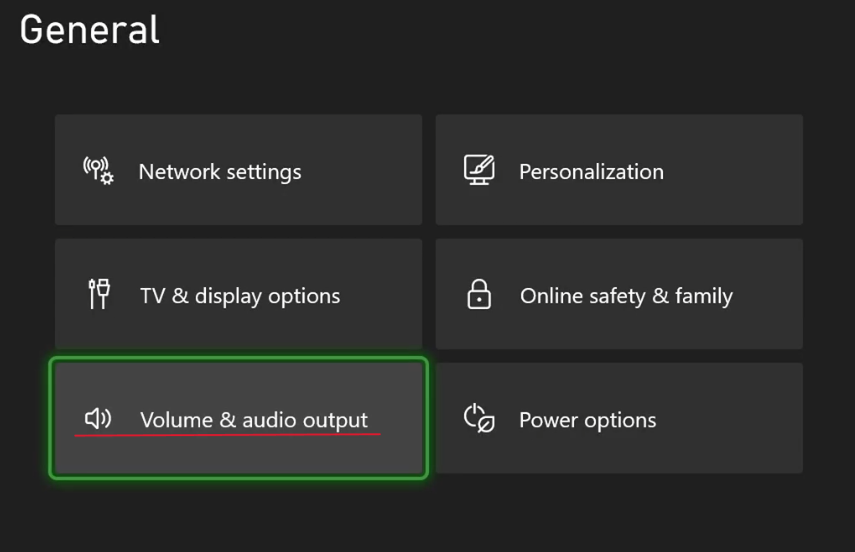
- In your Xbox Series S/X settings in the General tab, select “Volume & audio output”
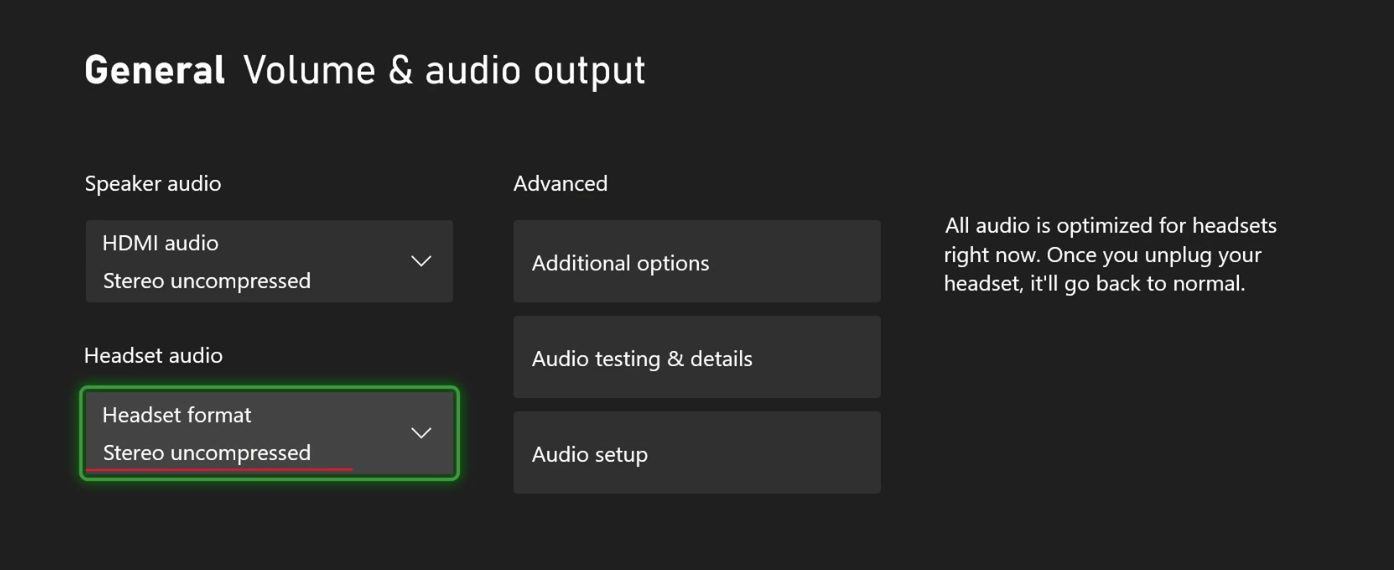
- Change the “Headset format” to “Stereo uncompressed”
 [b]for PlayStation 5:[/b]
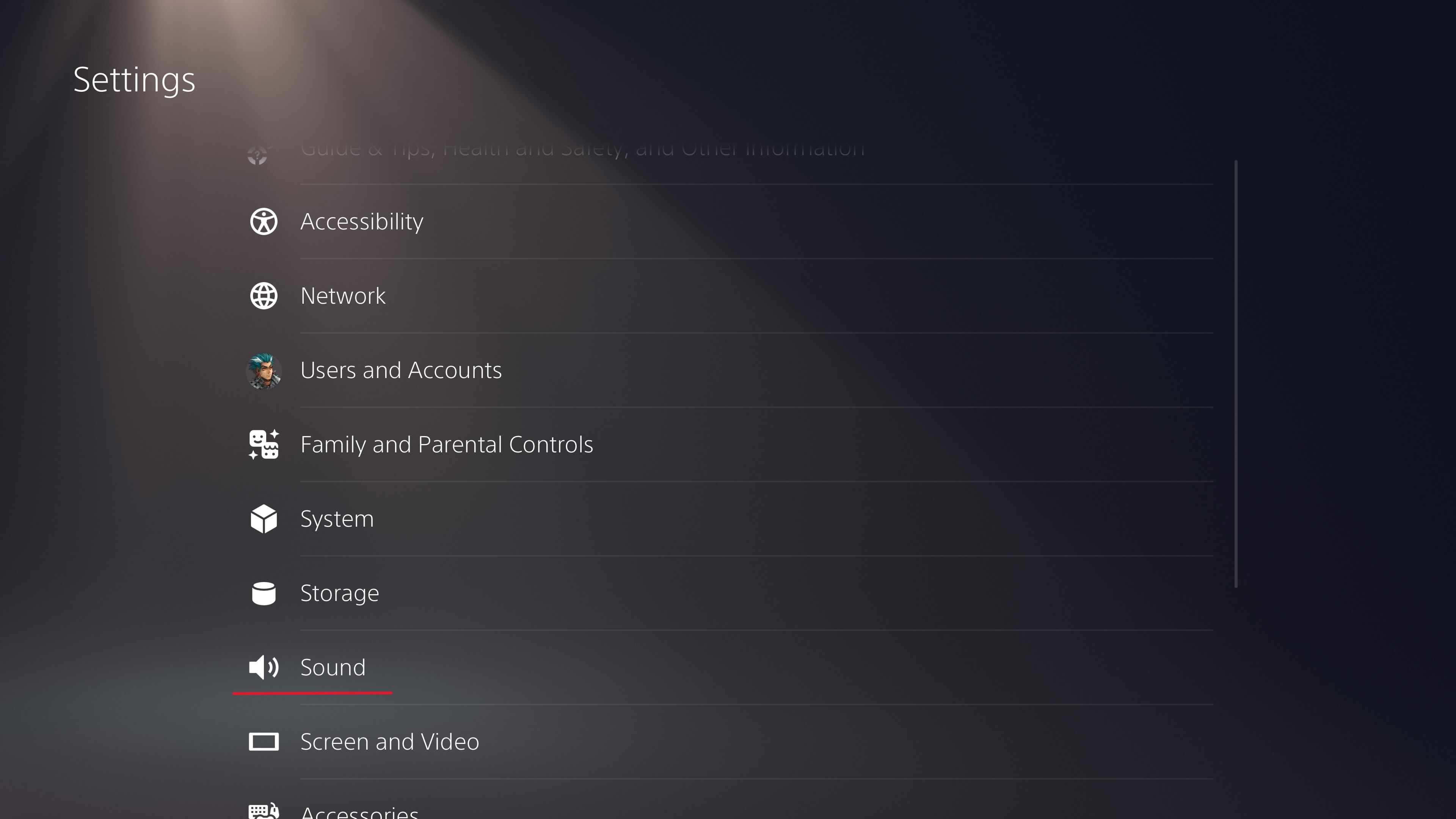
- Open your consoles settings -> Open the Sound Settings
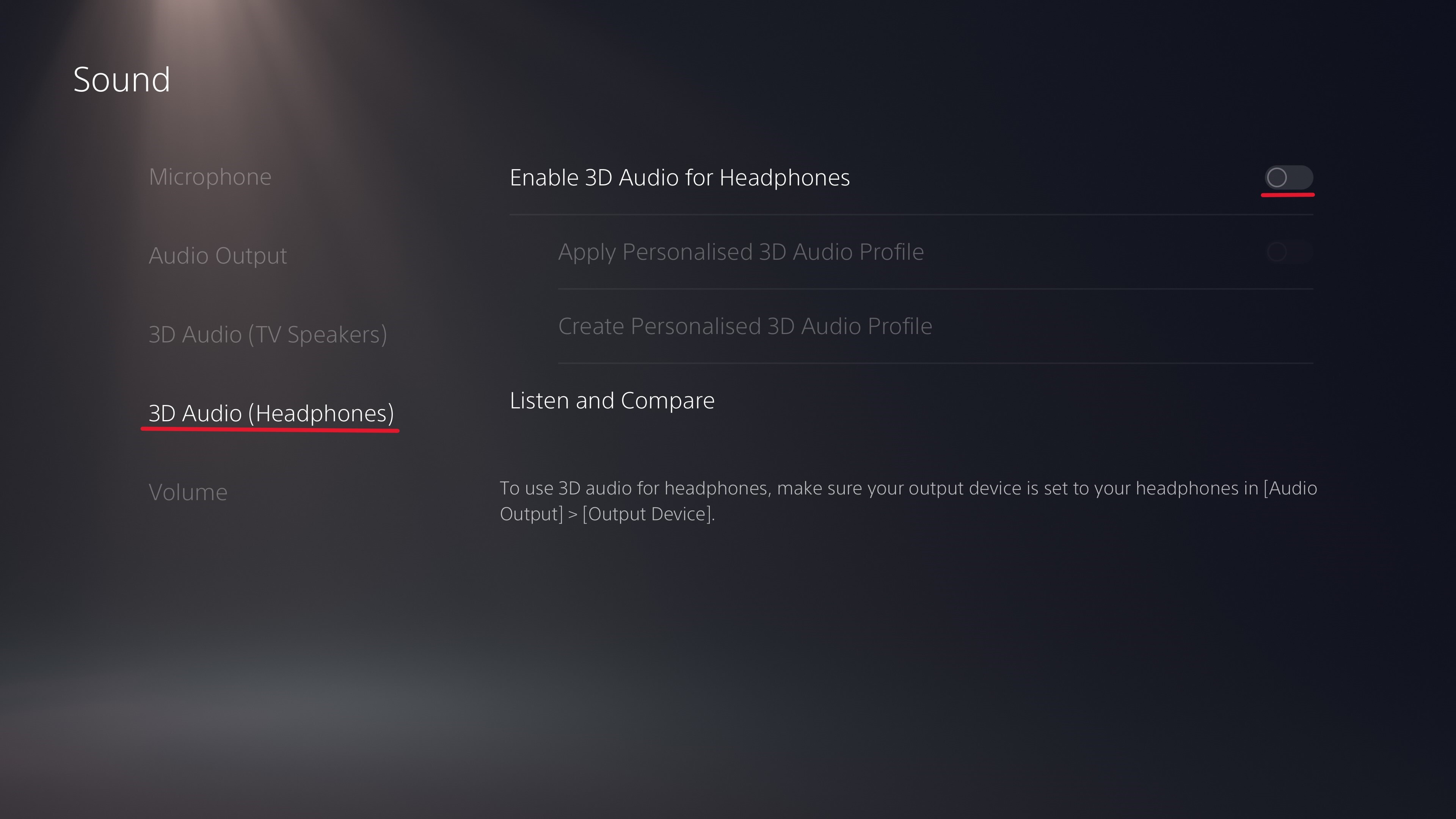
- In the 3D Audio (Headphones) Settings, deactivate the option “Enable 3D Audio for Headphones”
 [u]
[u]