First up, performance
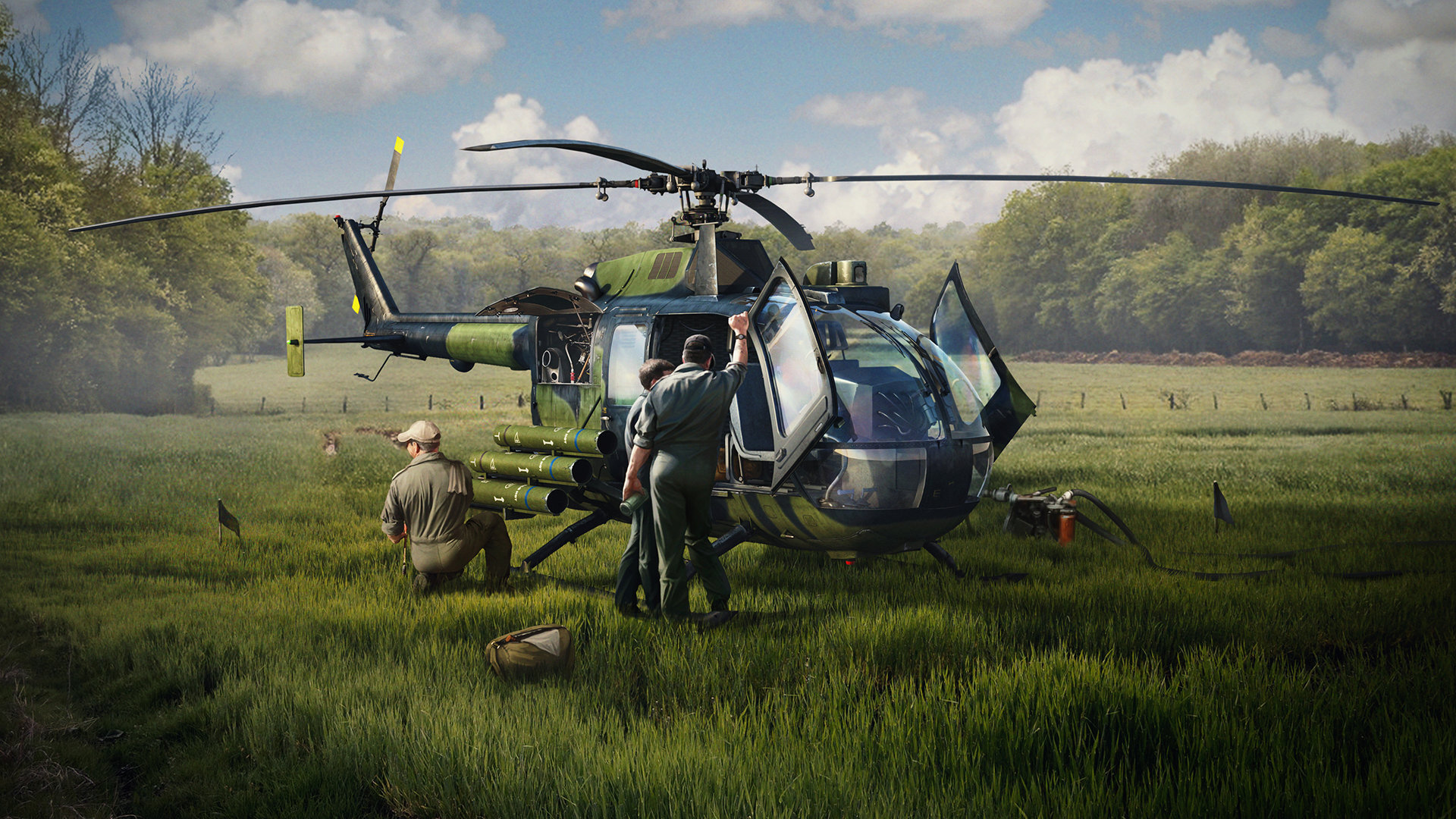 We’re always working to make performance better and come up with ways to lessen the load on the CPU and GPU for a smoother experience.
On the GPU side, we’ve come up with some ideas on improving performance in the most demanding scenario for Ray tracing, such as rendering foliage. Tracing rays through trees and forests is a time consuming task for the GPU. By changing the method of how rays are checked against leaves and branches, we were able to avoid severe performance degradation in these cases. Driving through a forest, or flying close to one while looking at it is much smoother now.
And those who have the hardware for it can expect it to be even better soon, as Microsoft announced a technique called Opacity Micro Maps (OMM) to be part of DirectX. This will be another bigger jump in tracing foliage. Microsoft also announced that Shader Execution Reordering is coming to DirectX which will help with performance in general. These features are in preview in DirectX and we are working on utilizing them to make performance even better.
Ray tracing is not only a GPU intensive workload, but also very demanding on the CPU, as we constantly need to update the acceleration structures to keep the Ray tracing in sync with the world. On the CPU side, we have identified many bottlenecks that were limiting performance. Ray tracing is using up to 8 CPU cores to do its work, and we have worked on faster processing and better synchronization on those cores. The gains here depend on many factors (CPU type, RAM speed, etc.) but every system should see a performance improvement.
We’re always working to make performance better and come up with ways to lessen the load on the CPU and GPU for a smoother experience.
On the GPU side, we’ve come up with some ideas on improving performance in the most demanding scenario for Ray tracing, such as rendering foliage. Tracing rays through trees and forests is a time consuming task for the GPU. By changing the method of how rays are checked against leaves and branches, we were able to avoid severe performance degradation in these cases. Driving through a forest, or flying close to one while looking at it is much smoother now.
And those who have the hardware for it can expect it to be even better soon, as Microsoft announced a technique called Opacity Micro Maps (OMM) to be part of DirectX. This will be another bigger jump in tracing foliage. Microsoft also announced that Shader Execution Reordering is coming to DirectX which will help with performance in general. These features are in preview in DirectX and we are working on utilizing them to make performance even better.
Ray tracing is not only a GPU intensive workload, but also very demanding on the CPU, as we constantly need to update the acceleration structures to keep the Ray tracing in sync with the world. On the CPU side, we have identified many bottlenecks that were limiting performance. Ray tracing is using up to 8 CPU cores to do its work, and we have worked on faster processing and better synchronization on those cores. The gains here depend on many factors (CPU type, RAM speed, etc.) but every system should see a performance improvement.
Next, image quality
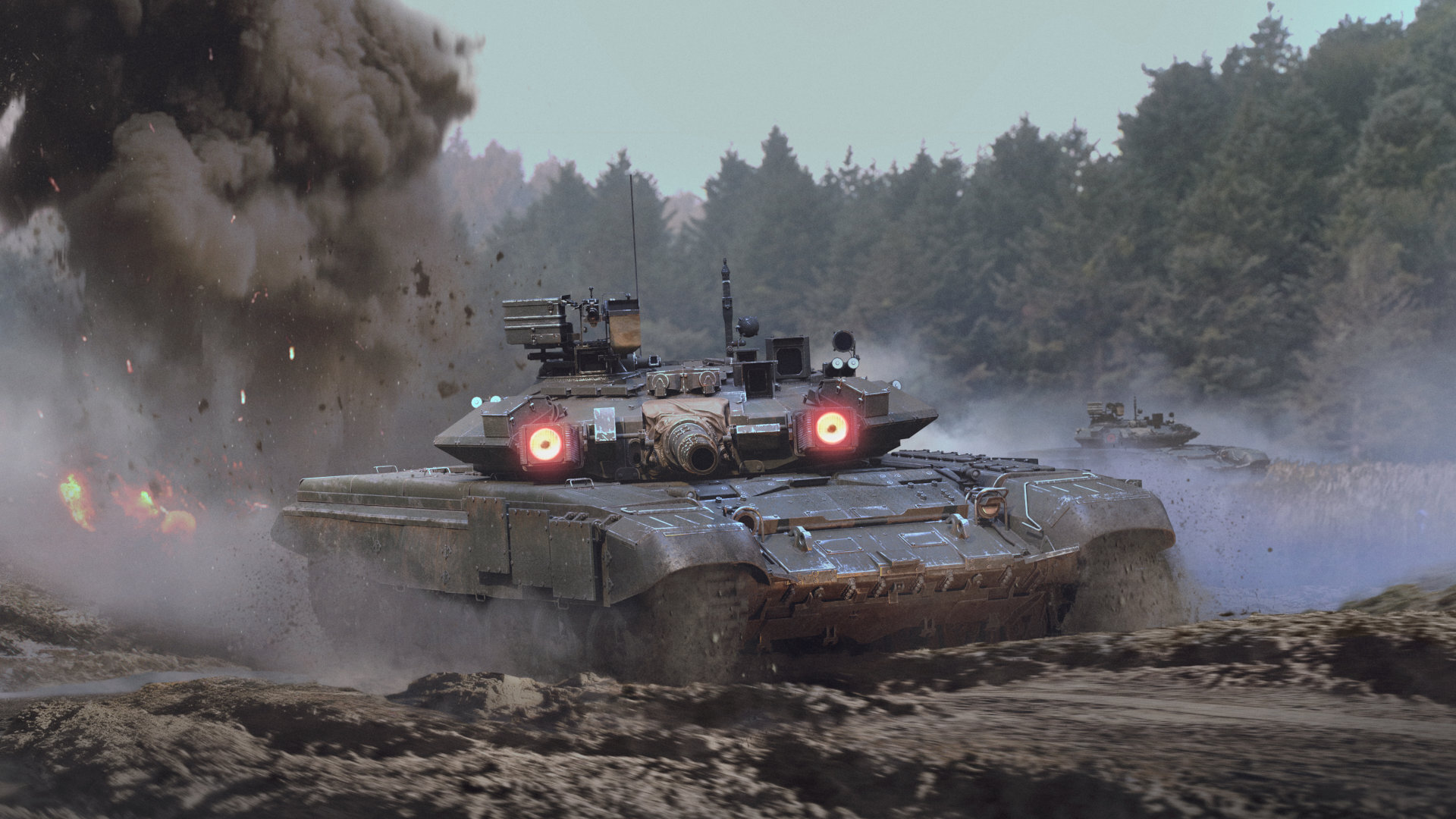 It’s important to keep the game visuals improving. Ray tracing already improves shadows, reflections and ambient occlusion. But now it is time to improve global illumination.
There’s a new option now, which when enabled, replaces ambient occlusion. We call it Path Traced Global Illumination or PTGI. Back in 2018 (time flies) when we introduced Global Illumination (GI) to the game it was a big visual leap, but technology keeps improving and now we can do it even better.
PTGI is simulating light, bouncing around in the scene, and calculates the lighting on surfaces which are indirectly lit. For example, in shadows, indoors or valleys. The old GI does a great job with this very topic, but it has its limitations. It works on a much more simple and inaccurate representation of the world, and it has a limited range.
The first usually shows as light leaking. This is when light appears where it should not be. As on the floor here on the left.
PTGI cleans all of these leaks up and makes the lighting in interior areas much more consistent with the rest of the scene. Also as you can see, PTGI embraces light more as it can simulate its bounces on a larger scale.
[carousel autoadvance="true"][img src="https://clan.akamai.steamstatic.com/images/4649813/e85fed9bd4c21f38d53742425726a2a368b9b7f9.jpg"][/img][img src="https://clan.akamai.steamstatic.com/images/4649813/766a705ab675b9ebfa5fb9e059b05ee4ea0ed2ed.jpg"][/img][/carousel]
[b](1) PTGI Off | (2) PTGI On[/b]
The limited range is sometimes very obvious. For example, during ground battles on a map with cloudy weather or in large indoor areas. The line in the middle of the bus stop is the edge of the area covered by the old GI system.
With PTGI, this limitation is gone, and the entire image is receiving consistent global lighting.
[carousel autoadvance="true"][img src="https://clan.akamai.steamstatic.com/images/4649813/60c776a4b325b3fe13a51f1e66ed02ec1d6afa33.jpg"][/img][img src="https://clan.akamai.steamstatic.com/images/4649813/45f4cf107c4785e2ca37f6a0679175e49a1e49b3.jpg"][/img][/carousel]
[b](1) PTGI Off | (2) PTGI On[/b]
Another very notable difference is that as the old GI is working on a simplified scene, many times it thinks the surface should be lit by the sky, when it shouldn’t. As a result, the indirectly lit areas having a blue tint on them — more than there should be.
As PTGI is working with the actual scene, and simulate more light bounces, the area is lit more naturally.
[carousel autoadvance="true"][img src="https://clan.akamai.steamstatic.com/images/4649813/b8dbe9ab0eec0ae6c80bf0b885a027ac5e460595.jpg"][/img][img src="https://clan.akamai.steamstatic.com/images/4649813/944b369463eae3cea25334026184fd7c2e0f9863.jpg"][/img][/carousel]
[b](1) PTGI Off | (2) PTGI On[/b]
The same can be seen on more open areas as well. With the old GI, the tiles and pavement have a somewhat unnatural blue color on them.
PTGI now simulates this more correctly and results in a more consistent image.
[carousel autoadvance="true"][img src="https://clan.akamai.steamstatic.com/images/4649813/137544b7fc13e09d67199c74a96ef17f563c92f9.jpg"][/img][img src="https://clan.akamai.steamstatic.com/images/4649813/f705d2e743efbfcfcc6440731f919afac354cad0.jpg"][/img][/carousel]
[b](1) PTGI Off | (2) PTGI On[/b]
It’s important to keep the game visuals improving. Ray tracing already improves shadows, reflections and ambient occlusion. But now it is time to improve global illumination.
There’s a new option now, which when enabled, replaces ambient occlusion. We call it Path Traced Global Illumination or PTGI. Back in 2018 (time flies) when we introduced Global Illumination (GI) to the game it was a big visual leap, but technology keeps improving and now we can do it even better.
PTGI is simulating light, bouncing around in the scene, and calculates the lighting on surfaces which are indirectly lit. For example, in shadows, indoors or valleys. The old GI does a great job with this very topic, but it has its limitations. It works on a much more simple and inaccurate representation of the world, and it has a limited range.
The first usually shows as light leaking. This is when light appears where it should not be. As on the floor here on the left.
PTGI cleans all of these leaks up and makes the lighting in interior areas much more consistent with the rest of the scene. Also as you can see, PTGI embraces light more as it can simulate its bounces on a larger scale.
[carousel autoadvance="true"][img src="https://clan.akamai.steamstatic.com/images/4649813/e85fed9bd4c21f38d53742425726a2a368b9b7f9.jpg"][/img][img src="https://clan.akamai.steamstatic.com/images/4649813/766a705ab675b9ebfa5fb9e059b05ee4ea0ed2ed.jpg"][/img][/carousel]
[b](1) PTGI Off | (2) PTGI On[/b]
The limited range is sometimes very obvious. For example, during ground battles on a map with cloudy weather or in large indoor areas. The line in the middle of the bus stop is the edge of the area covered by the old GI system.
With PTGI, this limitation is gone, and the entire image is receiving consistent global lighting.
[carousel autoadvance="true"][img src="https://clan.akamai.steamstatic.com/images/4649813/60c776a4b325b3fe13a51f1e66ed02ec1d6afa33.jpg"][/img][img src="https://clan.akamai.steamstatic.com/images/4649813/45f4cf107c4785e2ca37f6a0679175e49a1e49b3.jpg"][/img][/carousel]
[b](1) PTGI Off | (2) PTGI On[/b]
Another very notable difference is that as the old GI is working on a simplified scene, many times it thinks the surface should be lit by the sky, when it shouldn’t. As a result, the indirectly lit areas having a blue tint on them — more than there should be.
As PTGI is working with the actual scene, and simulate more light bounces, the area is lit more naturally.
[carousel autoadvance="true"][img src="https://clan.akamai.steamstatic.com/images/4649813/b8dbe9ab0eec0ae6c80bf0b885a027ac5e460595.jpg"][/img][img src="https://clan.akamai.steamstatic.com/images/4649813/944b369463eae3cea25334026184fd7c2e0f9863.jpg"][/img][/carousel]
[b](1) PTGI Off | (2) PTGI On[/b]
The same can be seen on more open areas as well. With the old GI, the tiles and pavement have a somewhat unnatural blue color on them.
PTGI now simulates this more correctly and results in a more consistent image.
[carousel autoadvance="true"][img src="https://clan.akamai.steamstatic.com/images/4649813/137544b7fc13e09d67199c74a96ef17f563c92f9.jpg"][/img][img src="https://clan.akamai.steamstatic.com/images/4649813/f705d2e743efbfcfcc6440731f919afac354cad0.jpg"][/img][/carousel]
[b](1) PTGI Off | (2) PTGI On[/b]
Finally, you may have downloaded some extra FPS
With the Leviathans update, when your GPU supports it, you can enable Frame Generation (FG). We have three flavors of it:- NVIDIA DLSS Frame Generation, working on NVIDIA GeForce RTX 40 Series and above GPUs when DLSS is enabled
- AMD FSR Frame Generation, working on AMD Radeon RX 5000 Series and above, NVIDIA GeForce RTX 20 Series and above and Intel Arc, when FSR is enabled
- Intel XeSS Frame Generation, working on Intel Arc GPUs when XeSS is enabled